How to set up
Vocabcord
The app does this for you. About 15 seconds, once.
On Android there is nothing to wire up: install Vocabcord, switch the charger trigger on in the app, and it runs. On iPhone, Vocabcord opens the automation settings for you and takes you straight to the right screen. This page just shows what each screen means, so nothing catches you off guard.


Scan to download


Scan to download
Already installed? If it didn't open on its own, tap the icon inside Vocabcord to run setup again.
What you'll see, step by step
Five taps, start to finish. Follow along with the screens below
— we'll point out exactly what to tap.
Screens are shown in English. If your iPhone is in another language,
the names are translated but everything sits in the same place.
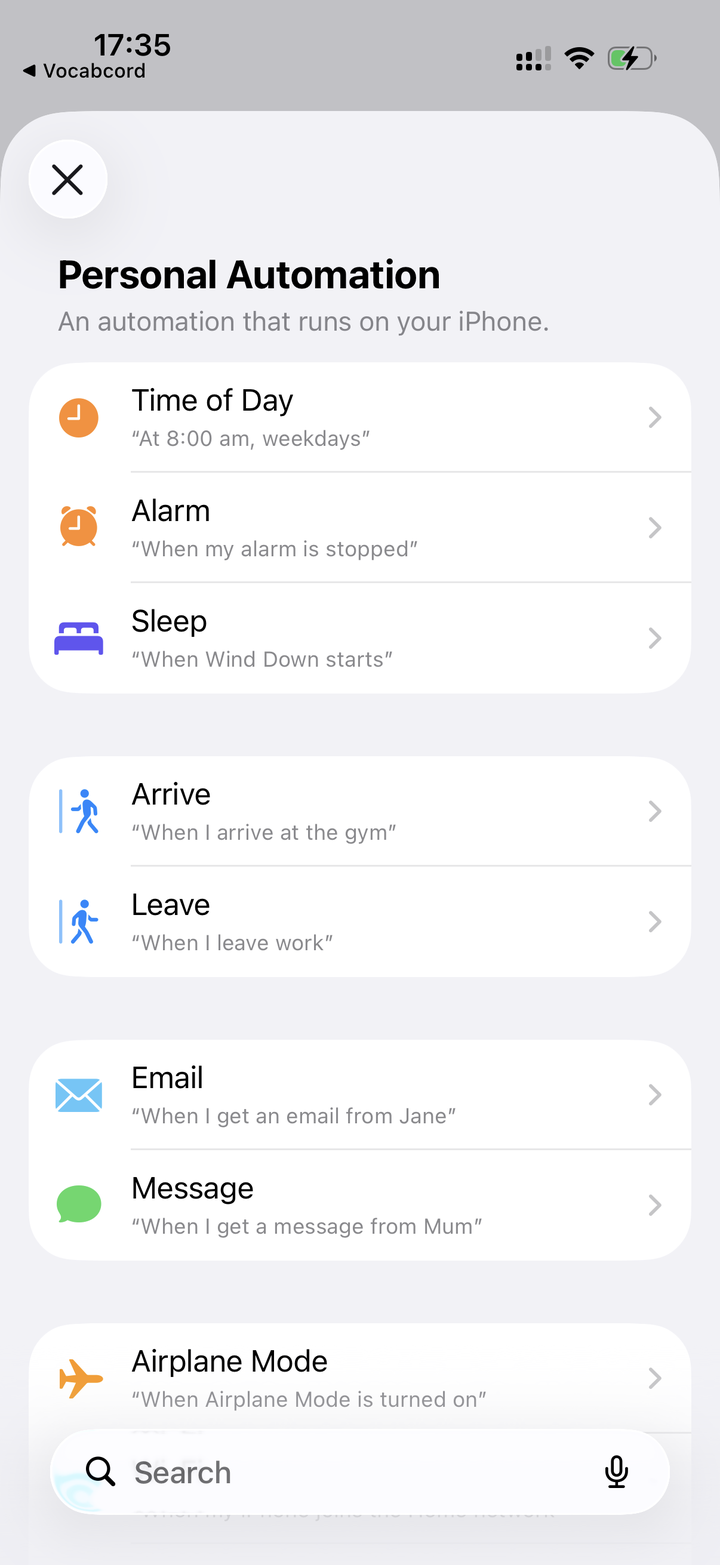
Vocabcord opens this screen
The app sends you to a list called Personal Automation. It's a long menu of triggers — you can ignore every one of them except a single item further down.
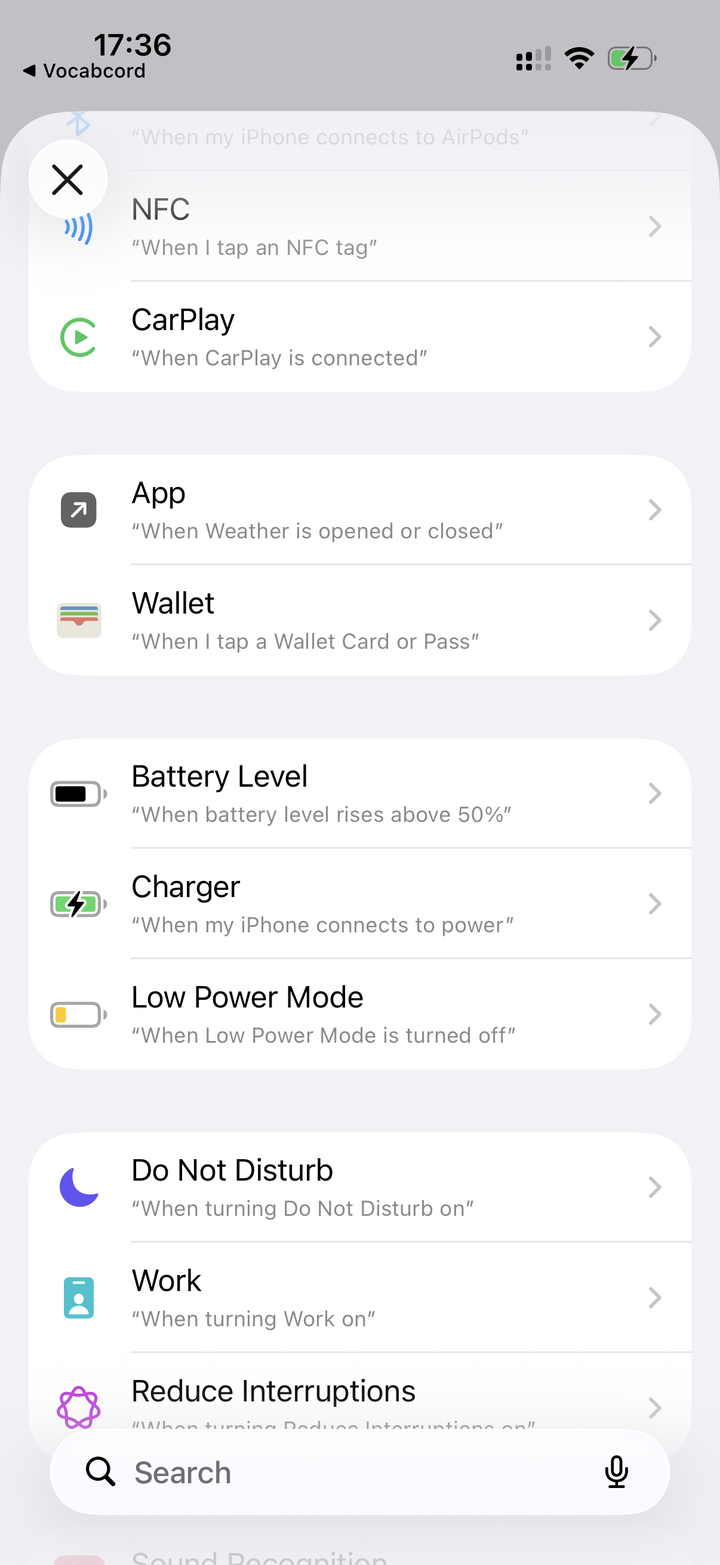
Scroll down to Charger
Keep scrolling until you spot Charger — it says "When iPhone connects to power." Tap it.
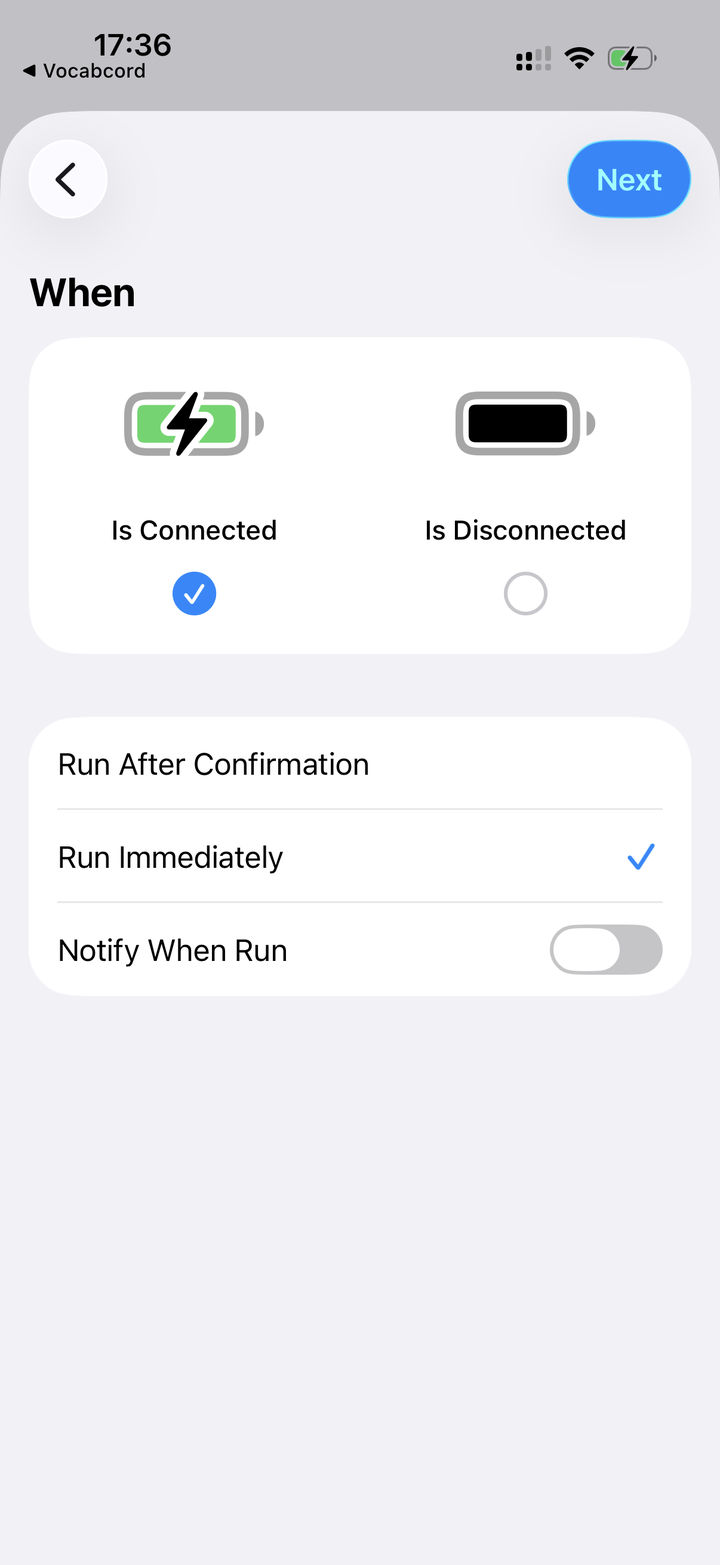
Use these settings
- Is Connected — tap it so it's ticked.
- Run Immediately — pick this one.
- Notify When Run — leave this off.
Then tap Next in the top-right corner.
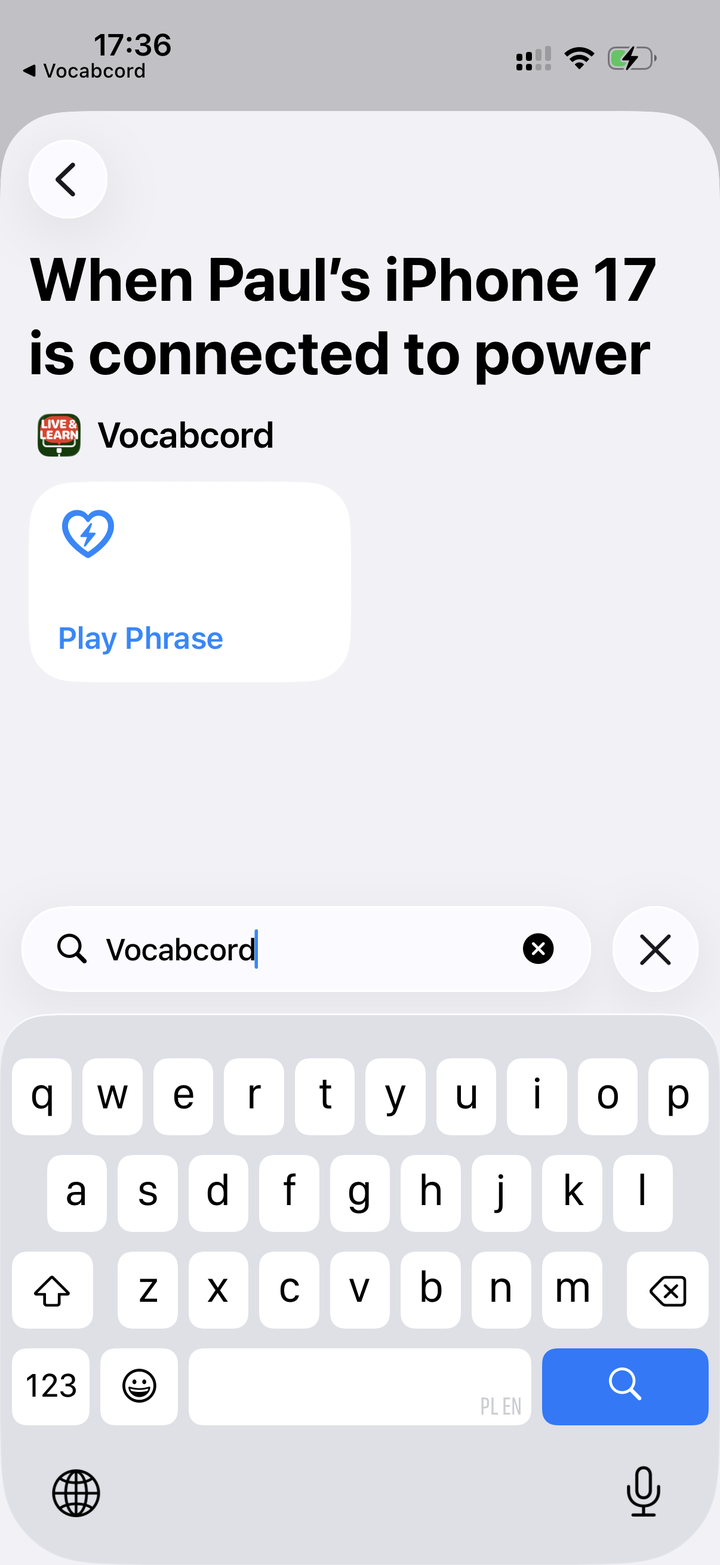
Find Vocabcord
A new screen appears with an A-to-Z list of apps. Tap Search at the bottom and type Vocabcord. Its Play Phrase action will appear.
You can also scroll down to V, near the bottom of the app list, and tap Vocabcord.
Tap Play Phrase
The one with the little heart 💙. And that's it — the automation is set. You can head back to the app.
Done!
Head back to Vocabcord and pick your language and pack. From now on, every time you plug in your charger, a word or phrase plays. No app to open, no reminders.
Don't have the app yet?

Scan to download

Scan to download
Prefer to watch?
The whole setup, in one video.
Common setup mistakes
If charging doesn’t behave as expected, check these first.
 Shortcuts
Your automation is ready to run.
Tap to run Vocabcord
It’s good to see you.
A notification from Shortcuts, not Vocabcord
A Shortcuts notification is about the automation. Vocabcord’s notification shows your phrase and translation.
- If it asks you to run the automation, choose Run Immediately instead of Run After Confirmation.
- If it only tells you the automation ran, turn Notify When Run off. Leave Vocabcord’s notifications on.
Two charger automations for Vocabcord
Setting up twice can create two automations, so one plug-in may play twice.
In Shortcuts → Automation, keep one charger automation that runs Vocabcord’s Play Phrase. Open both to check they run the same action, then remove the duplicate. Keep your other automations.