Setup · about 15 seconds, once
The app does this for you.
Get Vocabcord — it opens automatically and drops you straight into your iPhone's Shortcuts, right where you need to be. This page just shows what each screen means, so nothing catches you off guard.


Scan to download
Already installed? If it didn't open on its own, tap the icon inside Vocabcord to run setup again.
What you'll see, step by step
Five taps, start to finish. Follow along with the screens below — we'll point out exactly what to tap.
Screens are shown in English. If your iPhone is in another language, the names are translated but everything sits in the same place.
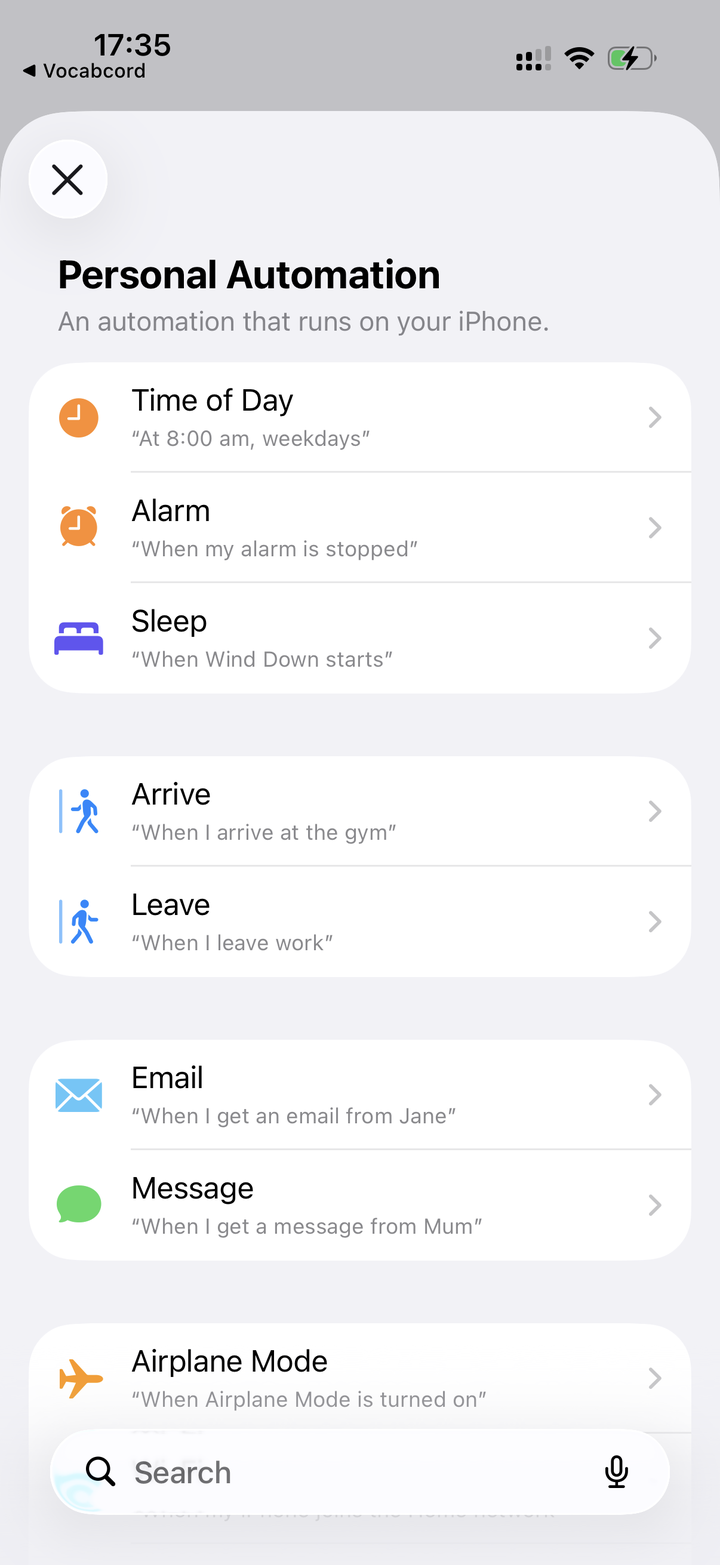
Vocabcord opens this screen
The app sends you to a list called Personal Automation. It's a long menu of triggers — you can ignore every one of them except a single item further down.
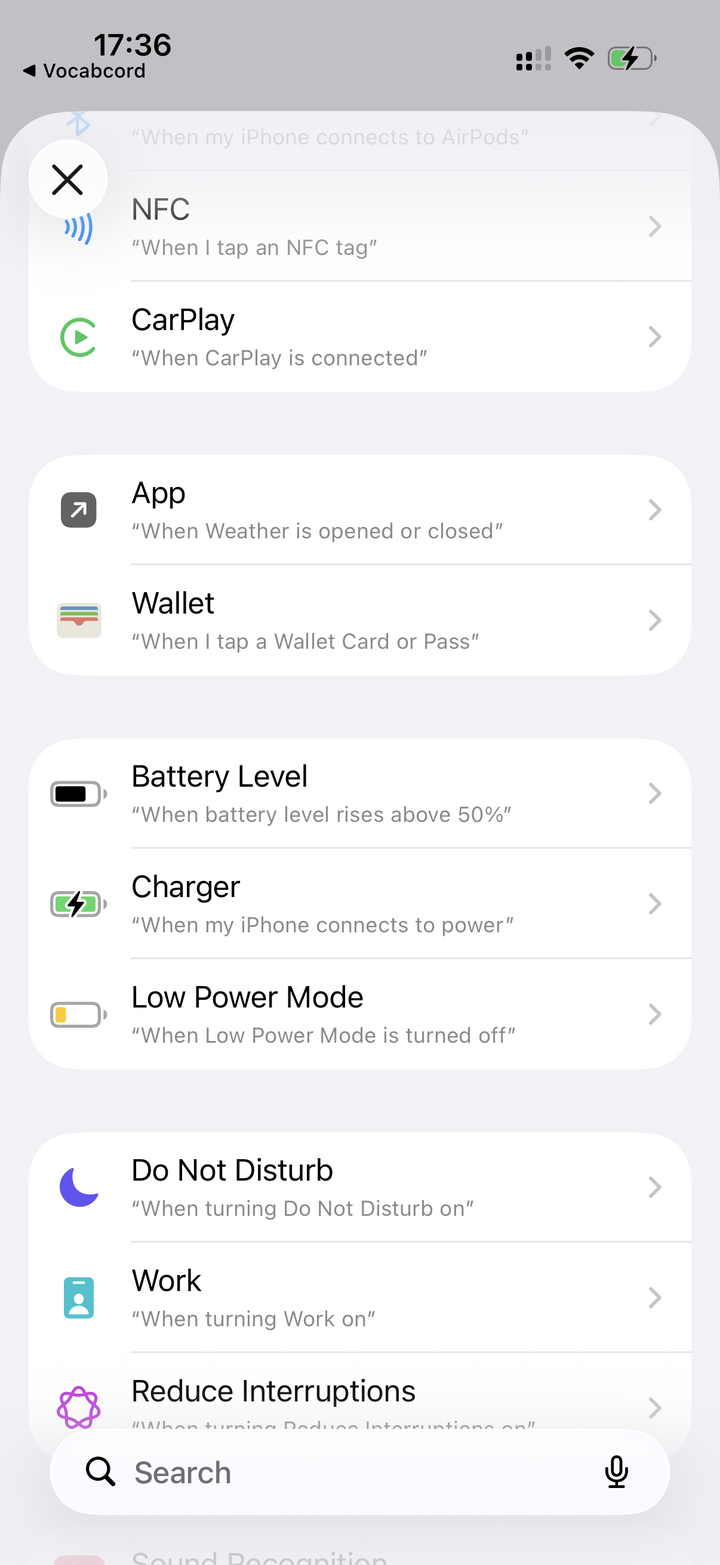
Scroll down to Charger
Keep scrolling until you spot Charger — it says "When iPhone connects to power." Tap it.
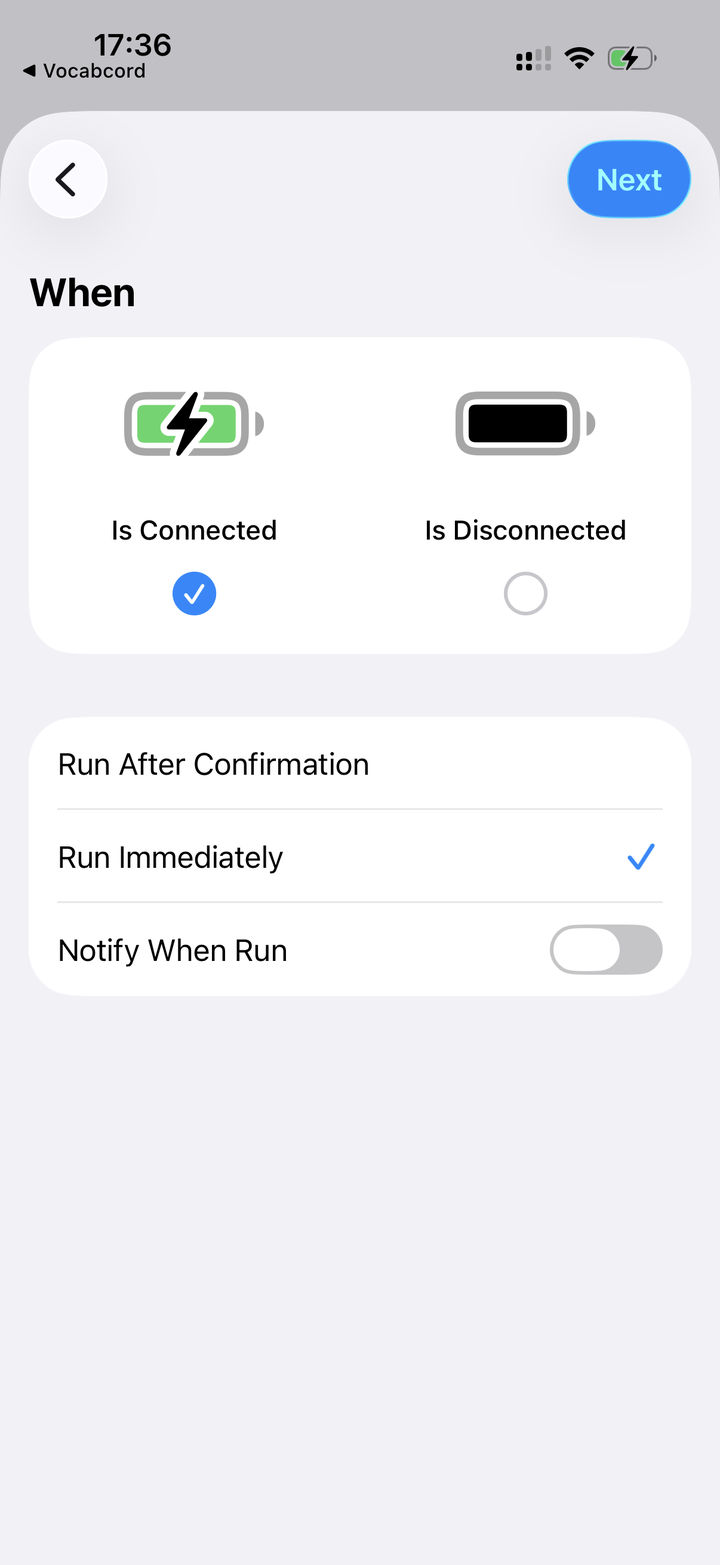
Choose these three
- ✅Is Connected — tap it so it's ticked.
- ✅Run Immediately — pick this one.
- ❌Notify When Run — leave this off.
Then tap Next in the top-right corner.
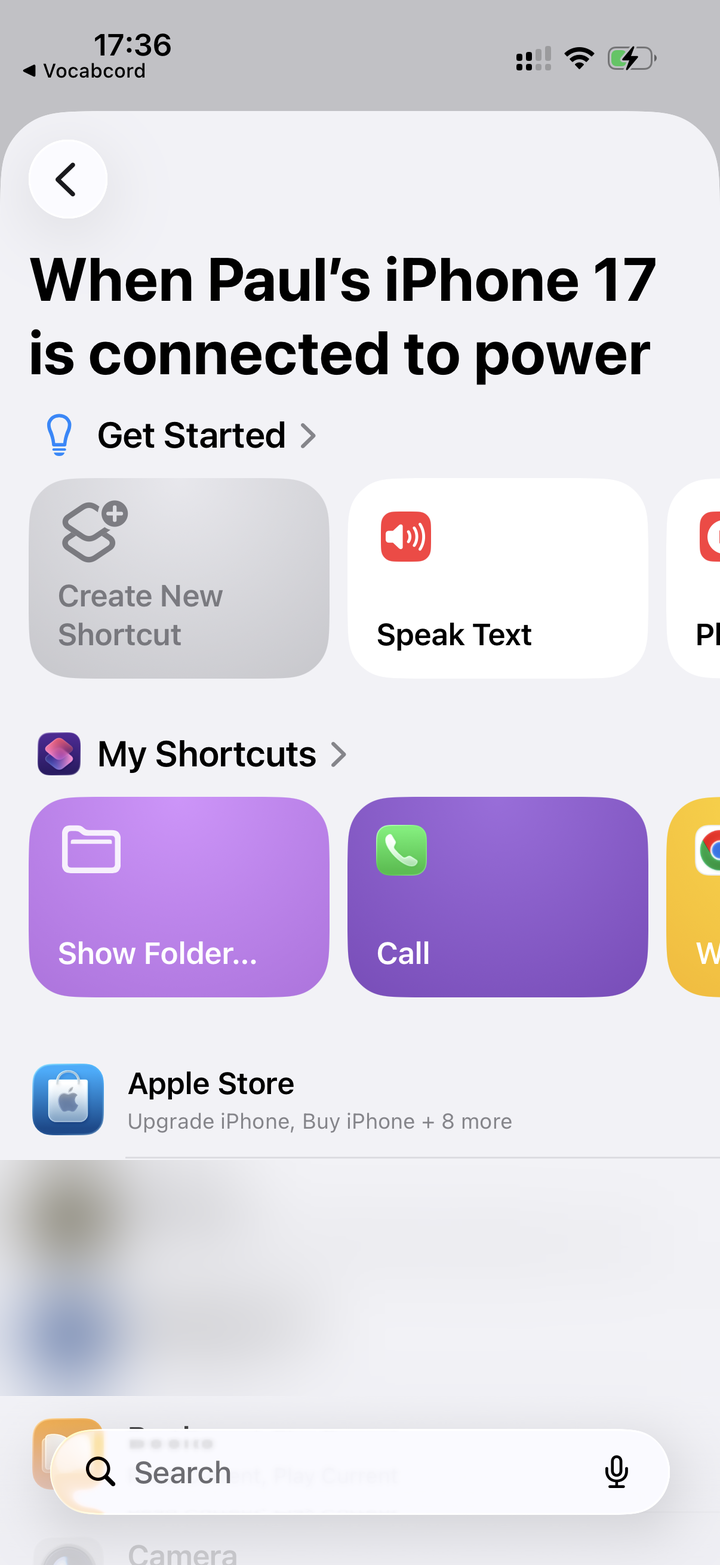
Tap the search box
A new screen appears. Tap the search box at the very bottom.
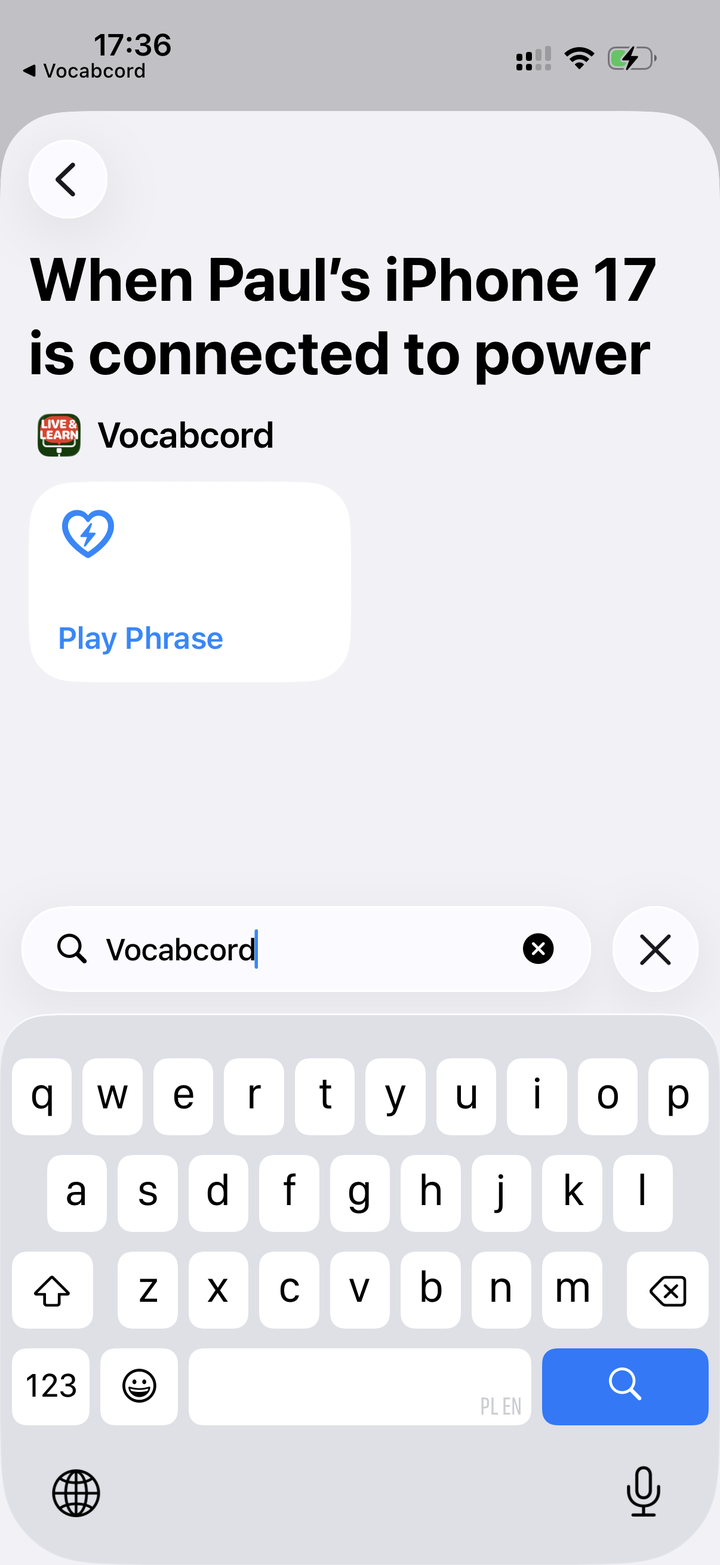
Type Vocabcord, then tap Play Phrase
In the search box, type Vocabcord. The moment Play Phrase appears — the one with the little heart 💙 — tap it. That's the whole thing.
Done. Seriously, that's it.
Head back to Vocabcord and pick your language and pack. From now on, every time you plug in your charger, a word or phrase plays. No app to open, no reminders.
Don't have the app yet?

Scan to download
Prefer to watch?
The whole setup, in one video.